Connect to KWDB Using KaiwuDB Developer Center
This section explains how to install and use the KaiwuDB Developer Center to connect to KWDB. KaiwuDB Developer Center provides a user-friendly visual interface for managing your databases efficiently.
Note
The KaiwuDB Developer Center interface is currently available in Chinese only.
Install KaiwuDB Developer Center
Prerequisites
Before installing the KaiwuDB Developer Center, ensure your system meets these requirements:
- Operating Systems
- Windows: Version 7 or later (64-bit)
- Linux: Kernel 2.6 or later
- macOS: All supported versions
- Hardware Requirements
- Memory: Minimum 1 GB RAM
- Storage: Minimum 10 GB free disk space
- Software Requirements
- KWDB: Version 2.0 or later
- OpenJRE: Version 8 or later
The interface may differ slightly across OS versions, but the functionality remains consistent.
Steps
Follow these steps to install KaiwuDB Developer Center:
Download the corresponding installation package for KaiwuDB Developer Center based on your operating system.
Note
Due to file size limitations, you may need to download multiple installation packages.
Extract the installation packages to your preferred location. The extracted file structure should look like this:
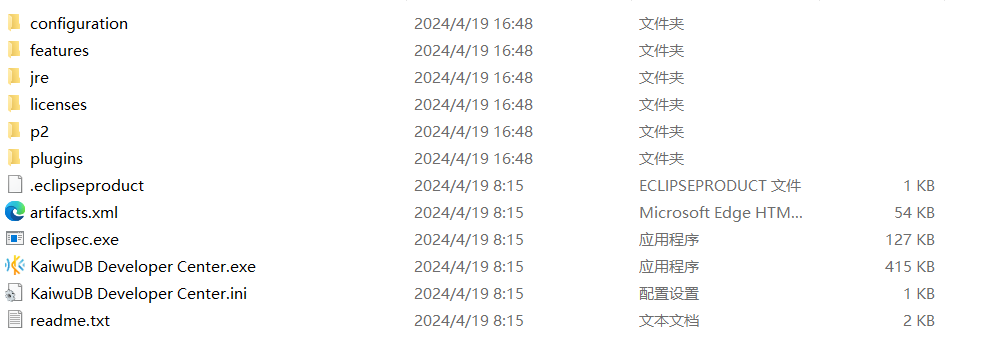
Launch the application by double-clicking the executable file.
Connect to KWDB
Initial Setup
When you launch KaiwuDB Developer Center for the first time, or after removing all existing connections, the 创建新连接 (Create Connection) wizard will appear automatically.
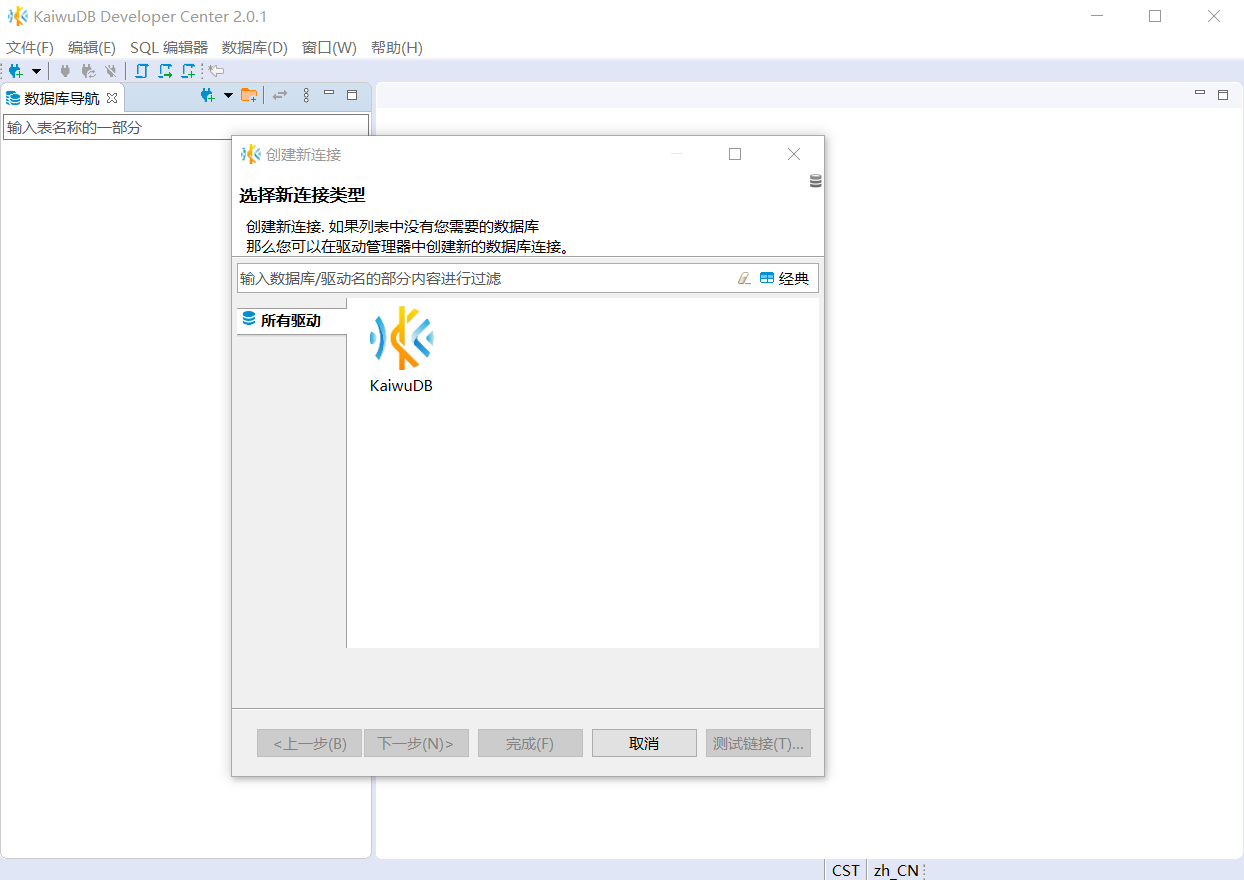
Follow these steps to create your first connection:
In the 创建新连接 (Create New Connection) window, select the KaiwuDB driver and click 下一步(Next).
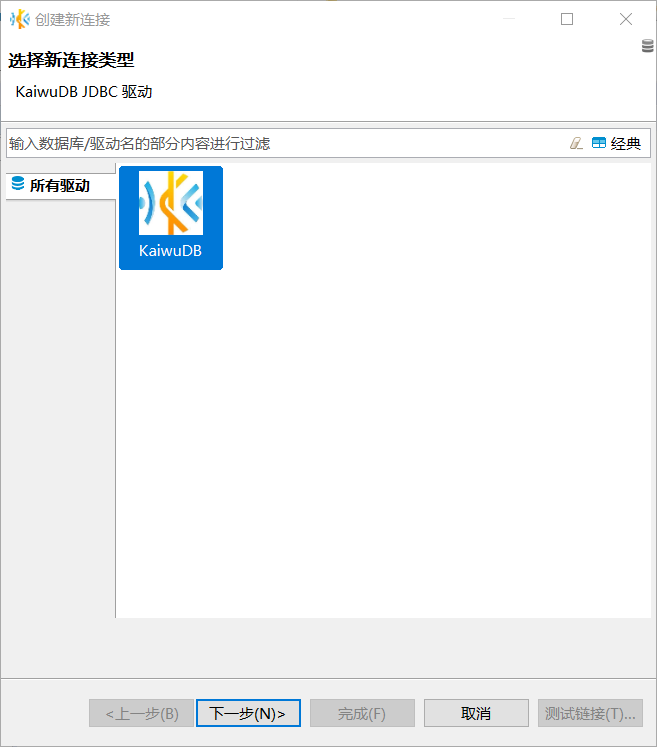
In the 常规 (General) tab, enter the enter the connection details:
- host address
- port number
- database name
- username
- password (not required for insecure deployment mode)
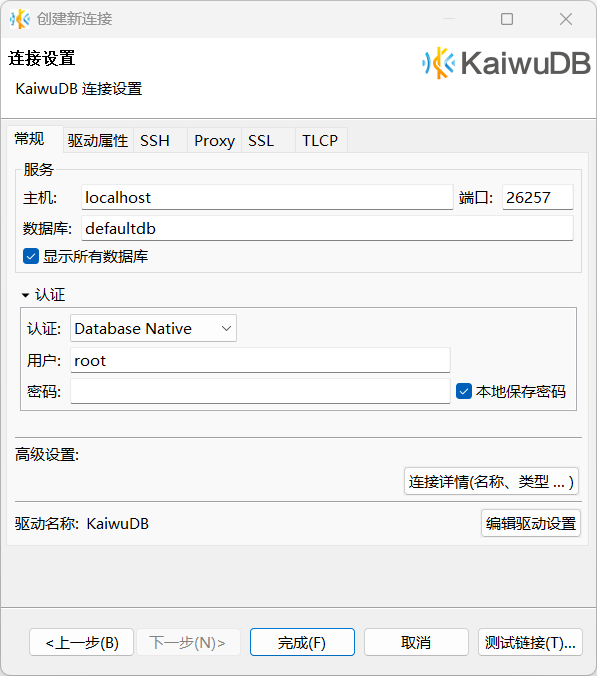
(Optional) Click 测试链接 (Test Connection) to verify your configuration. A success message appears if the connection settings are correct.
Click 确定 (OK). The database navigation panel refreshes to display all databases you have permission to access.

Additional Connection Methods
You can create new connections at any time using either of these methods:
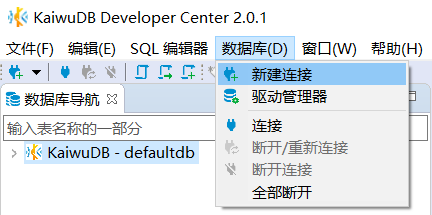
Toolbar: Click the New Connection button on the toolbar or the database navigation toolbar.
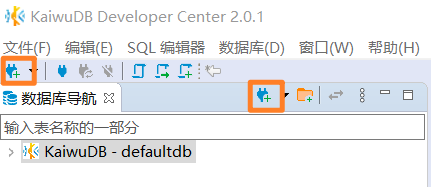
Menu: Select 数据库 (Database) from the menu bar, then click 新建连接 (New Connection).